
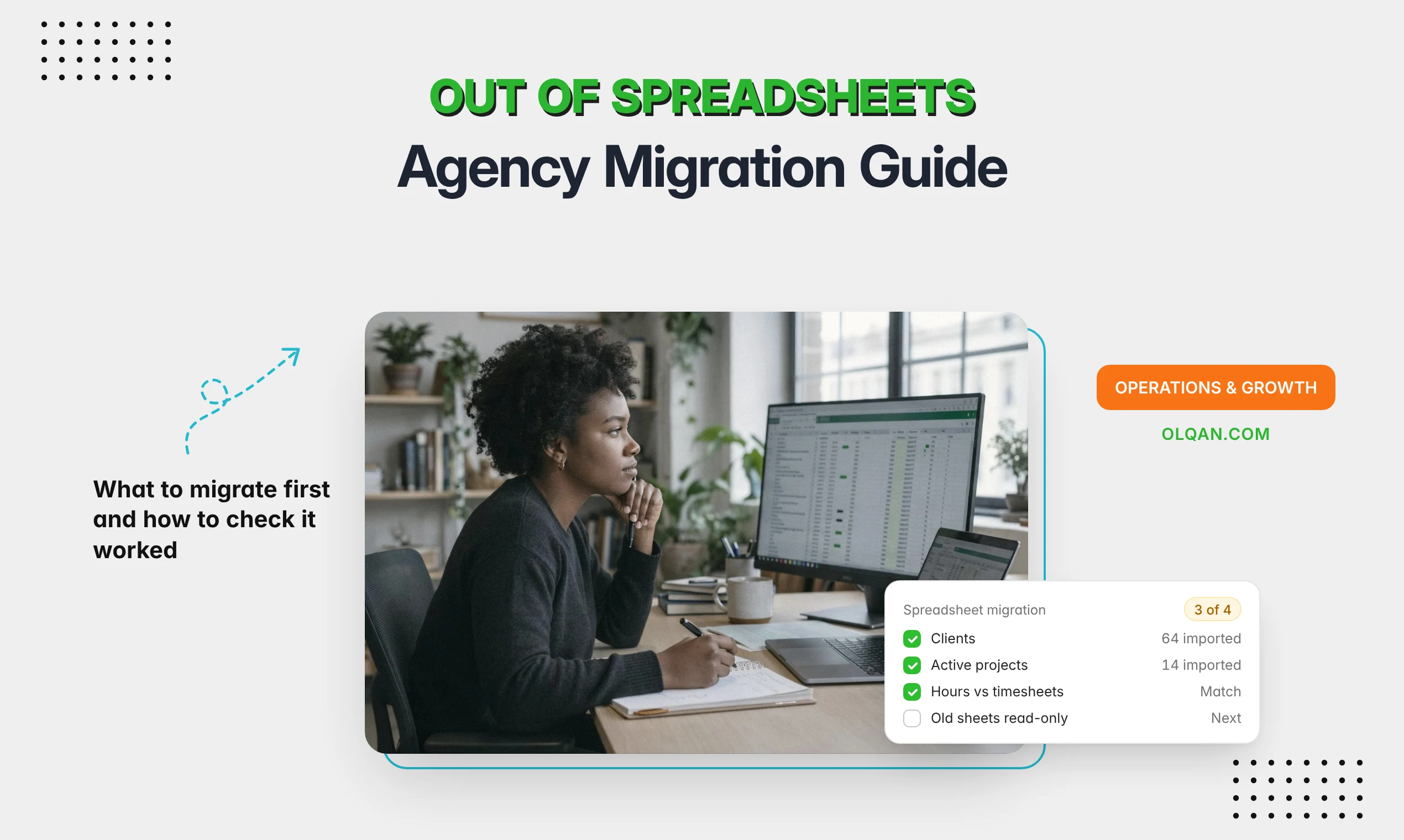
To move agency operations out of spreadsheets, do not migrate everything at once. Start with the spreadsheets that cause the most rework and risk, in the order the data depends on each other: clients first, then active projects and budgets, then time tracking, then invoicing, and finally the sales pipeline. Clean the data before you import it, run the new system in parallel with the old spreadsheets for one billing cycle, and check the results with simple reconciliation tests: record counts, invoice totals and hours should match. Then make the old spreadsheets read-only.
This guide is for agency owners and operations leads. If you are running your business on Microsoft Excel, Google Sheets or Zoho Sheet and know it is time to make the transition from spreadsheets, it covers the signs you have outgrown spreadsheets, what to migrate first and what to leave behind, a step-by-step guide to the migration, and the checks that show whether it worked.
Signs your agency has outgrown Excel
Simple spreadsheets are a good place to start an agency. They are flexible, cheap and everyone knows how to use them. The limitations of Excel show up when spreadsheets contain the data several people depend on every day:
- Version control. There are three copies of the project tracker, and nobody is sure which one is current.
- Manual data entry. The same client name, project and amount is typed into the pipeline sheet, the project tracker, the timesheet and the invoice log.
- Data across multiple spreadsheets. Answering “is this project profitable?” means opening four files and copying numbers between them.
- Formula errors. One broken formula or a row added outside the range quietly changes a total, and nobody notices for weeks.
- No real-time data. Project progress, hours and unbilled work are only up to date after someone finishes updating spreadsheets.
- Access and data privacy. Rates, salaries and client data sit in Excel files that are easy to share and hard to control.
- Work falls through the gaps. Hours are logged but never invoiced, and handoffs between sales and delivery depend on someone remembering.
If three or more of these sound familiar, the spreadsheets running your agency no longer save time. They cost it.
Spreadsheet tools vs software: what each does well
Moving from Excel does not mean spreadsheets are bad. A modern spreadsheet has advanced features and is still the right tool for tasks like analysis and modelling. The point is that spreadsheet functionality is not built for shared, daily operations. The table shows where each fits.
| Need | Spreadsheets | Agency management software |
|---|---|---|
| One-off analysis and models | Excellent | Not the point |
| Shared, daily operational data | Breaks with multiple users | Built for it |
| One record per client and project | Copied across files | Entered once, used everywhere |
| Time tracking against budgets | Manual and late | Logged against tasks as work happens |
| Invoicing from work done | Retyped from timesheets | Created from time, milestones and retainers |
| Permissions and audit trail | Limited | Roles, approvals and history |
| Real-time dashboard | Only as fresh as the last update | Updated as work is recorded |
The spreadsheets most agencies run on
Before you plan the move, list your existing spreadsheets, every spreadsheet the business depends on. In most agencies, the list looks like this:
- Client list with contacts and billing details
- Sales pipeline or CRM sheet
- Project tracker with status, deadlines and owners
- Project budgets and budget vs actual
- Timesheets
- Resource and capacity plan
- Invoice log and payment tracking
- Expense tracking
Next to each one, note who owns it, who uses it, how often it changes, and what goes wrong with it. That short audit tells you where to start.
What to migrate first
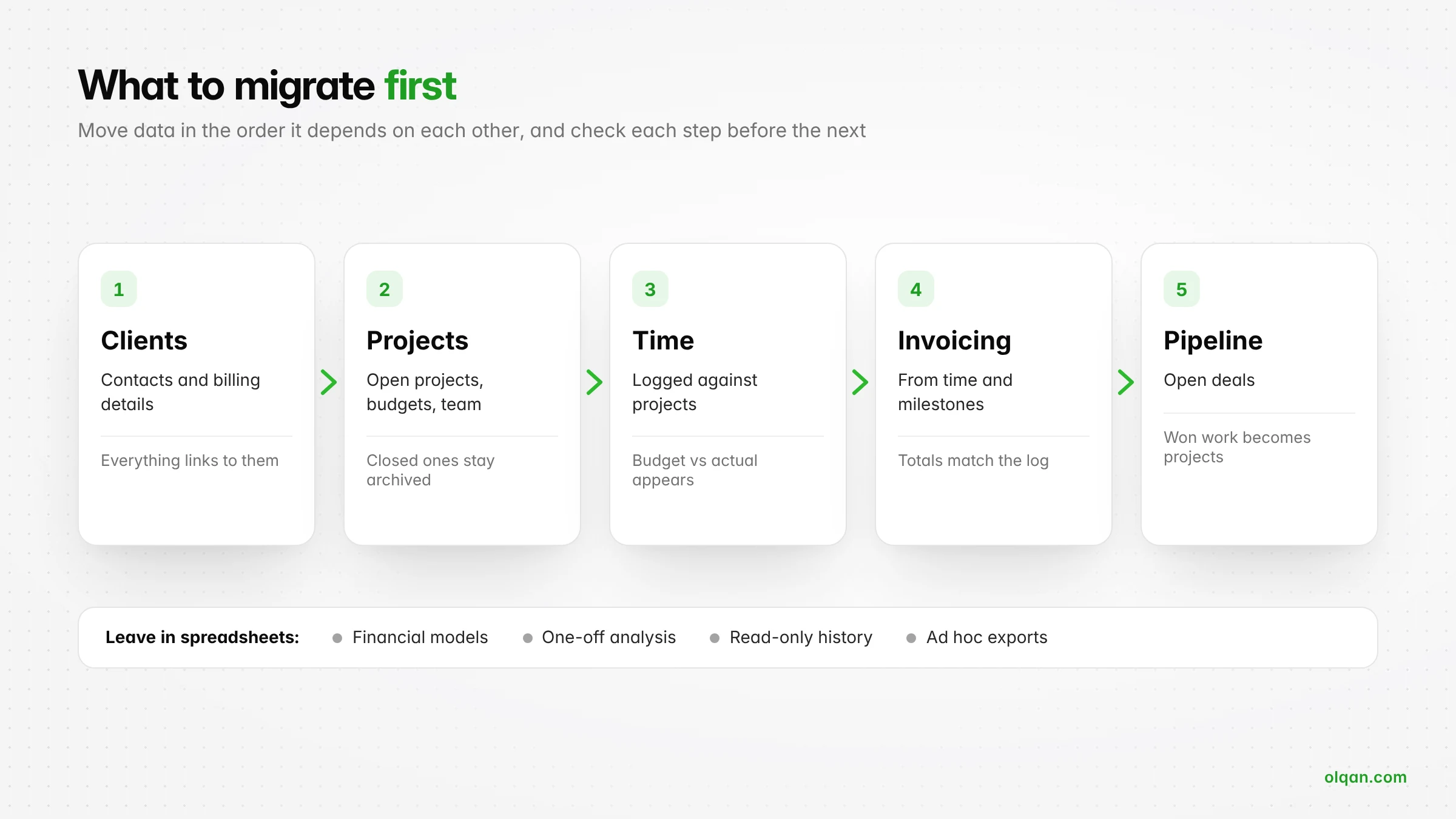
The right order follows two rules: start where errors cost the most money, and migrate data before the things that depend on it. A project needs a client, time needs a project, and an invoice needs time, milestones or a retainer. For most agencies, that gives this order:
- Clients and contacts. Everything else links to them. A clean client list with billing details is also the quickest win.
- Active projects and budgets. Only open projects, with budget, milestones, team and status. Closed projects can stay in the archive.
- Time tracking. Once projects exist, the team logs time against them. This is where budget vs actual and unbilled work become visible.
- Invoicing and payments. Create invoices from the time, milestones and retainers now recorded in the system, and track what is paid.
- Sales pipeline. Move open deals so won work turns into projects without retyping.
- Everything else. Expenses, capacity planning, approvals and reports, once the core is stable.
Some agencies start with the sales pipeline because it feels easiest. It usually is not the best first step: the pipeline changes little day to day, while projects, time and invoices are where spreadsheets lose money.
Benefits of moving from spreadsheets to software
- One source of truth. Client, project and billing data is entered once and used everywhere, so there is no manual data entry between files.
- Real-time data. Project progress, hours and budgets update as the team works, not when someone updates the spreadsheet.
- Automation. Software can automate routine steps, such as turning won deals into projects or logged time into invoice lines.
- Control and data privacy. Roles and permissions decide who sees rates, salaries and client data, with a history of changes.
- Fewer billing gaps. When time and invoices live on the same projects, unbilled work is visible before month end.
What to leave in spreadsheets
- Financial models, forecasts and one-off analysis.
- Historical data you only need for reference. Keep it as a read-only archive instead of importing years of closed projects.
- Ad hoc reports. Most software lets you export data to CSV or Excel when you need to analyze it in a spreadsheet.
The goal is not zero spreadsheets. It is no spreadsheets that the business runs on every day. Moving operational project data into one system is what helps you streamline and save time.
Step-by-step guide to data migration from spreadsheets to software
1. Audit your spreadsheets
List every spreadsheet, its owner, users and problems, as above. Mark which ones are the source of truth for clients, projects, time and invoices.
2. Choose an owner and a scope
One person owns the migration and has time for it. Agree the scope for phase one, usually clients, active projects, time and invoicing, and a date to switch.
3. Clean the data before you import it
- Remove duplicate clients and merge variations of the same name.
- Standardize formats for dates, currencies and phone numbers.
- Archive closed projects instead of importing them.
- Fill in missing billing details for active clients.
Importing messy raw data only moves the mess, and the duplicate data, into a new system. Cleaning your existing data first is the most important part of migrating your data.
4. Map the fields
Match each spreadsheet column to a field in the new software, for example “Company” to client name and “Rate” to billing rate. Decide what to do with columns that have no match.
5. Import a test batch
Export a small sample of data from Excel to CSV, import it, and check it record by record. Fix the mapping, then import the rest.
6. Pilot with one team or project
Run one live project fully in the new system, from time tracking to invoice. It shows the gaps before everyone depends on it.
7. Run in parallel for one billing cycle
Keep the old spreadsheets for one month while the team works in the new software, then compare the results. This is the safest way to avoid data loss and to build trust in the new system.
8. Switch off the old spreadsheets
Make the old files read-only and move them to an archive folder. If people can still edit them, some will, and you are back to two versions of the truth.
9. Train the team and set the rules
Show each role what they do in the new system: who logs time, who approves it, who creates invoices. Agree simple rules, such as time logged by Friday and invoices created from the system only.

How to check the migration worked
A migration is not done when the data is imported. It is done when the numbers match and the team uses the new system without falling back to spreadsheets. Check both.
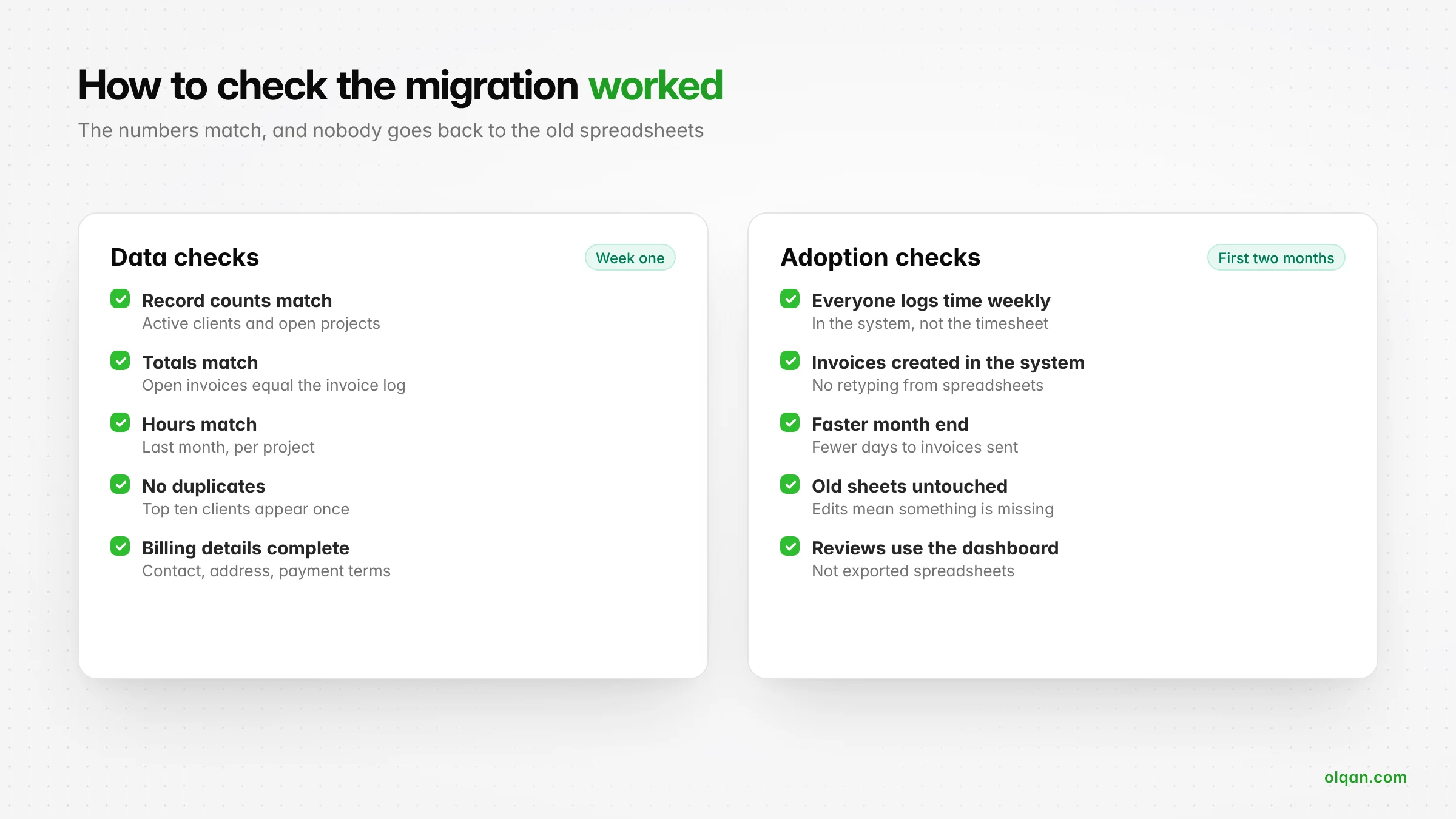
Data checks (week one)
- Record counts match. The number of active clients and open projects is the same in both places.
- Totals match. Open invoice totals equal the total in your invoice log. Project budgets add up to the same figure.
- Hours match. Last month’s hours per project are the same in the new system and the timesheets.
- No duplicates. Search for the ten largest clients and confirm each appears once.
- Billing details are complete. Every active client has an invoice contact, address and payment terms.
Adoption checks (first two months)
- Time is logged in the system by everyone, every week.
- Invoices are created from the system, not retyped from spreadsheets.
- Days from month end to invoices sent goes down.
- Nobody edits the old spreadsheets. If they do, find out what the new system is missing.
- Project reviews use the dashboard, not exported spreadsheets.
Worked example: an 18-person agency
An illustrative example, not a real client. A digital agency with 18 people runs on six spreadsheets: clients, pipeline, project tracker, budgets, timesheets and an invoice log. Month-end invoicing takes the operations lead two days of copying hours from timesheets into invoices.
- Week 1: audit and clean-up. 212 client rows become 64 active clients after removing duplicates and archiving old accounts.
- Week 2: clients and 14 active projects are imported, each with budget, milestones and team.
- Weeks 3 to 6: the team logs time in the new system while timesheets run in parallel. At month end, hours match within one entry, which turns out to be a typo in the spreadsheet.
- Week 6: invoices are created from logged time and milestones. The open invoice total matches the invoice log.
- Week 7: the old spreadsheets become read-only. The pipeline moves next.
The checks did the real work: because counts, hours and totals matched, the team trusted the new system enough to stop using the old one.
Common mistakes when replacing spreadsheets
- Migrating everything at once. A big-bang switch overwhelms the team and makes errors hard to trace.
- Importing dirty data. Duplicates and gaps follow you into the new system.
- Importing all history. Years of closed projects slow the migration and add little value.
- Rebuilding the spreadsheet in software. Unlike spreadsheets, a system has its own workflow. Use it instead of copying every column and tab, and avoid moving to software without changing how work flows.
- No owner. A migration that belongs to everyone belongs to no one.
- Leaving the old files editable. Two sources of truth is worse than one spreadsheet.
Excel alternatives: custom software, database software or project management software?
When you choose software to replace spreadsheets, there are three common routes. Database software, a tool like Airtable, keeps a spreadsheet feel with more structure. Custom software, or an Excel to web app built by a development service, fits your process exactly, but you maintain it. Off-the-shelf systems like agency management or project management software come with workflows that already connect clients, projects, time and invoicing. For most business users in an agency, software like that is the fastest route, because the software isn’t something you have to build or maintain. Before you choose, ask:
- Does it cover clients, projects, time tracking and invoicing in one system, or will we connect several tools?
- Can we import clients and projects from CSV or Excel, and export data back when we need it?
- Can we see budget vs actual and project profitability while work is in progress?
- Does it have roles and permissions for rates, salaries and client data?
- Does it offer an integration or API for our accounting software and calendar?
- What does onboarding and customer support look like, and who helps us set it up?
Our guides on how to choose agency management software and professional services automation software go deeper on evaluation.
How Olqan replaces agency spreadsheets
Olqan is a business operating system that helps growing service businesses, including agencies and consulting firms, grow profitably. The spreadsheets agencies run on map to one connected system:
- Client list and pipeline: clients, leads and deals in the Sales Hub.
- Project tracker and budgets: projects, tasks, milestones, budgets and budget vs actual in the Project Suite.
- Timesheets and capacity: billable and non-billable time tracking, utilization and capacity.
- Invoice log and expenses: invoices from time, milestones and retainers, payment tracking and expenses in the Finance Console.
- Automation: workflows that automate routine steps in sales, so fewer tasks depend on someone remembering them.
- Integrations: QuickBooks, Google Calendar, Slack, Microsoft Teams and payment gateways such as Stripe and PayPal.
Olqan offers a free Solo plan, and paid plans start at $12 per user per month billed yearly, with a 14-day trial and no credit card required (see pricing). To plan your move from spreadsheets with our team, book a demo.
Frequently asked questions
What is replacing spreadsheets in agencies?
Agency management software, also called professional services automation software, replaces the operational spreadsheets: clients, projects, time, invoicing and pipeline. Spreadsheets remain useful for analysis and models.
When should a business move from spreadsheets to software?
When several people depend on the same spreadsheets every day, data is copied between files, and errors or missed billable hours start costing money. There is no fixed team size: the signal is rework, not headcount.
Can our historical spreadsheet data be imported?
Usually yes, through CSV or Excel import. Most teams export each sheet from Excel to CSV first. Import active clients and open projects first, and keep closed history as a read-only archive unless you need it in reports.
Can I turn an Excel spreadsheet into an app?
Yes, with custom software or no-code tools, but it means maintaining your own system. For standard agency workflows such as projects, time and invoicing, off-the-shelf software is usually faster and cheaper to run.
Can I use Excel as accounting software?
For a very small business, Excel can track income and expenses, but it lacks double-entry controls, audit trails and tax features. Most businesses move to accounting software as soon as they have regular invoices and expenses.
How long does it take to move from spreadsheets to software?
Plan for a few weeks of preparation and one full billing cycle in parallel. The exact time depends on how many spreadsheets you have, how clean the data is, and how much time the migration owner can give it.
Can we still get reports in Excel after moving to software?
Most agency software lets you export data to CSV or Excel, so you can still analyze it in a spreadsheet when you need to.
Conclusion
Moving agency operations out of spreadsheets works best as a sequence, not a big switch. Audit what you have, clean the data, migrate clients, projects, time and invoicing in that order, run one billing cycle in parallel, and check that counts, hours and totals match. When the numbers agree and nobody opens the old spreadsheets, the migration is done, and your team gets back the hours it spent copying data between files.